Radio Spectrum: Accessibility or Entertainment?

Radio Spectrum Management have been circulating a consultation and discussion document, “Preparing for 5G in New Zealand – Technical Consultation”.  The “gotcha” in the fine print is that one option being considered is to move the IMT Band (Industrial & Medical Telemetry Band) as well as make some provision for 5G into the 600MHz Band.

That is the band that most churches who have just bought new wireless microphones will now occupy, having been pushed out of the 700MHz band a couple of years ago.

My company has made the following response to the Radio Spectrum Management discussion document.  It is based on a proforma response originating with WUNZ (Wireless Users NZ), but I hope I have managed to value add the thought that there is more to life, and value, than entertainment and sports events and that some of the people impacted by “minor” tinkering with the spectrum are the ones with least capacity to pay for the consequences, but who provide valuable services to society at large.

The discussion paper can be found here – https://www.rsm.govt.nz/projects-auctions/current-projects/preparing-for-5g-in-new-zealand-technical-consultation

Response: Preparing for 5G in NZ

From System Design & Communication Services.

This response relates particularly to the Discussion Document questions 1, 15 and 16. 

As a current user and supplier of radio microphones and in-ear monitors that operate in the 600MHz band, I would be an affected party if this frequency band is reallocated for IMT/5G usage.

Radio microphone users would lose 76MHz of nationally available spectrum from this 600MHz band. Currently, there are no other spectrum bands that appear to offer this same amount of spectrum as a contiguous available block nationally throughout New Zealand.

As a specialist supplier to the non-profit and religious sector, I would point out that this sector, in particular, is ill-equipped to make another forced “fork-lift upgrade”, and the response of many of my clients will be simply to do without such systems.  The immediate consequence of this will be an immediate degradation of service to the many hearing-impaired and disadvantaged persons to whom my clients provide social welfare services (and in extreme cases may even lead to cessation of service provision entirely). 

At another level, removing capacity to operate relevant equipment in the 600MHz range may cause some of my clients to lose their ability to comply with their obligations under the Building Code and Disabilities Code.  Compliance with these may involve providing Hearing Augmentation systems and the audio source for such systems will be a microphone.  In many cases, the functional and logistic requirements of the service being delivered dictate that this microphone should be a wireless device.  Loss of 600MHz systems may require not only replacement or modification of the microphone but may require replacement and/or modification of the entire Hearing Augmentation system, possibly requiring extensive associated building works.

The benefit of such social and potentially intangible services provided by the non-profit sector is not as easy to quantify as the glamour entertainment sectors of Music, Sport and the Arts.  However, the social and economic benefits of the sector are not inconsequential.

I request on behalf of my non-profit clients, that Radio Spectrum Management adopt the following recommendation as a guiding principle of re-planning NZ spectrum;

  • Ensure that sufficient usable spectrum, preferably in the existing 600MHz band, is preserved for radio microphone and in-ear monitor usage at the community level for educational, health-related and social good purposes by non-profit and religious entities.

I also request that Radio Spectrum Management carefully consider these comments and the following recommendations should you resolve to reallocate the 600MHz band and therefore require current radio microphone and in-ear monitor users to re-acquire or modify existing hardware to alternative frequency bands.

  • Provide monetary compensation to affected users who acquired or modified hardware in direct response to the 700MHz spectrum sell-off.

Ensure that sufficient usable spectrum is preserved for radio microphone and in-ear monitor use at large scale events, such as concerts, festivals, theatre productions, red carpet movie premiers, and sporting events.  This provision should make allowance for the fact that multiple users and/or suppliers are operating concurrently at some of these events types.

A quick guide to using microphones effectively; a presenter’s perspective

A lot of us never need to get behind the business end of a microphone. But for those who have to present regularly, it is important to have a basic understanding of how different microphones work. Then we are able to adapt our speaking technique to suit the microphone in front of us as we deliver our message. This is a quick guide to using microphones effectively for presenters of all ages!

Microphones are components in virtually all audio systems.

Thus, you’ll hear about studio microphones for recording and PA microphones for live sound. There are boom microphones for broadcast or film shoots.  Or instrument microphones which attach directly to guitars or other musical instruments.  Then there are boundary microphones or boundary effect microphones for theatre work or conference systems, lapel mics for seminars and business meetings, and headset microphones for telephone call centres. (And this is just to mention a few options). The different types of microphones optimise a range of different requirements in different environments.

That said, all microphones have one thing in common: “microphones convert a sound wave into an electrical signal in which the voltage and current are proportional to the original sound”.  To perform this task microphones use a thin membrane, known as a diaphragm, which mimics the function of the human eardrum.  Sound waves strike a microphone’s diaphragm and cause the diaphram to move. Harnessing this movement creates an electrical signal.

A sound is essentially a change in pressure that varies in specific ways over time to create specific sounds (sound waves).  When sound waves strike a microphone’s diaphragm, they cause it to move, which movement, in turn, creates a variance in an electrical current (aka signal).  The electrical signal is transmitted to output devices, which either process the electrical signal (store it, or make it louder, or make it sound like Darth Vader on a bad hair day), or use the signal to recreate sound waves (loudspeakers).

Microphone Types

Microphone engineers, over the course of “recorded” history, have developed 3 fundamental techniques for detecting sound waves and “transducing” sound to electrical signals. 

Dynamic Microphones

A dynamic microphone uses the diaphragm to move a coil of wire within a magnetic field to create the electric signal.  It’s advantages are it’s relative simplicity and good voice frequency characteristics.  A dynamic microphone is quite sensitive to interference from external electromagnetic fields. If your venue has a hearing aid loop, you don’t want to try dynamic microphones. 

Condensor Microphones

A condenser microphone uses the diaphragm to move one side of a capacitor plate thus causing the capacitance to vary. This creates an electric signal.  The advantages are it has good resiliency, can cope with large variances in the sound loudness and tends to have a larger frequency response.  Condensor microphones are often used for instrument microphones, however, are the basis for many vocal microphones as well.  The disadvantage is that the capacitor requires a power source to keep it charged. Therefore, a condenser microphones require either batteries or a power supply delivered from the connected equipment. 

Ribbon Microphones

Ribbon microphones consist of a thin strip of metallic foil suspended in front of a magnetic plate.  Sound waves cause the foil to vibrate, producing fluctuations in the electrical current, creating the audio signal.  This extremely sensitive configuration picks up a wide range of frequencies and produces an extraordinarily rich representation of the original sound.  The trade-off for this sensitivity is the delicacy of the mechanism – ribbon microphones are very sensitive to physical impacts and power overdrive.  (Oh, and very expensive).

System Engineering

The other factor that effects using microphones is the system engineering.  A system engineered for voice reinforcement usually uses rather sensitive microphones and try to “hide” the microphones away so they don’t distract from the presenter.  A vocal microphone for a rock band vocalist, by contrast, can have much lower sensitivity. In this case, however, the microphone is held within millimetres of the vocalist’s mouth. This means that the microphone “hears” only the voice and not the other instruments around it. 

Principles for Presenters

So, as a speaker/presenter, how do you make sure you are heard and understood?

  • Learn to recognise – or at least be able to take a good guess – at what internal configuration and pick-up pattern the microphone has.  If you have the opportunity to research beforehand, do so.  Then adjust your speech style accordingly – speak “firmly” to dynamic microphones, but more relaxed and rounded to condenser microphones.
  • When you have a sound operator, work in cooperation with them. A good sound operator will usually have a better understanding of the capabilities of the microphones they can offer.
  • While standing normally, move the microphone so you are “looking down the barrel” of the microphone.  If you can’t move the mic, move yourself.  For guidance in using voice reinforcement systems, a hand-held microphone should be about a handspan from your mouth.  Stand-mounted or Lectern mics should be about 15”/400mm away from your mouth.  A microphone on a stand will typically be setup for voice reinforcement. Taking the microphone off its stand and useing it as a hand-held will result in excessively loud sound-levels. A good sound operator can help here. However, don’t assume they can read minds, so try to give them some warning what you intend to do.
  • Ensure your voice production is clear and controlled.  The microphone doesn’t make the sound for you – it reinforces the sound you make.  If the sound you make is muddy, mumbled and unclear, so will be the amplified sound.
  • Watch your dynamic control.  By all means express yourself dramatically – just stay within the bounds of the system capability. If all your drama only bursts your audience’s ear drums, they won’t “hear” anything else. In either sense of the word.
  • Watch you don’t move off orientation to the microphone. It’s fine to walk around if you are comfortable with that – so long as the microphone walks with you and stays properly oriented to your mouth.  (If you are able, use a wireless microphone such as a lavaliere clipon, developed specifically to address this issue. However, they still need care to setup and use.)  Some microphones are more tolerant than others, but just turning your head can make a big difference.

You speak to deliver a message – don’t let the technology become a distraction to that message.

Buidling the word website (with cranes)

Church Websites: Part One

What, Why & Wherefore

How can churches use websites effectively?

graph of survey results - the best way we could use improved church technology in our District would be ...;  How can churches use websites effectively?

In November last year, I ran a survey on Church Technology topics and received about 80 responses over a period of a couple of weeks.  As you can see from the graph, it seems like some of you want to find out about websites, so here we go.

What are websites?

Websites are fundamentally a collection of documents on a server running a program to use a set of defined technology protocols to make the documents available for display on a remote, but network connected, computer.  The motivation behind the original technology was to create an easier way to share academic research within the academic community and focused on text documents.  Over time, the enabling technologies have been expanded and evolved so that now, website technologies are what drives everything from online banking and online shopping to social media to remote control of your house air-conditioning and lighting.  Today, a “standard”, bread and butter website would use server-based software called a Content Management System (CMS) and build the site out of a collection of components that contain content and display that content in different ways.

Church websites

So, why have a church/parish/congregation website?  Like many things in the communications field, the first question is, “What are you trying to achieve?  What is that makes this a desirable objective for us to accomplish?”  Given that there is no truly free way to develop a website – at the very least someone will spend time, and time has a value, even if we don’t end up paying money for it.  We need to make sure that the resources we spend make us a return of the type we are looking for.  In my experience, there are three general types of things churches try to achieve in their websites, in combination or by themselves.  But whatever type suits your situation, remember, “If it’s worth doing, it’s worth doing well!”

  • Brochureware” site – I call this type “brochureware” because it is an online clone of the printed brochure some congregations have their greeters hand to new arrivals.  The objective is to give a summary of the congregation’s “Vital statistics” – the phone numbers, addresses (email, postal, physical), what groups meet and key contact people.  Often, congregations will try to go beyond the purely administrative information and try to paint a picture of the type of community the congregation is to help strangers viewing the website try to assess how well they would “fit” in that community.  The “Find a Church” feature on the methodist.org.nz website is well-suited to hosting sites of this type.  (Alec Utting is the webmaster for this site and would be happy to talk to you about getting your Parish page up to scratch.)  Given the research that indicates that something like 70% of people who walk through your door for the first time has already checked you out with Google, I think this type of site is a no-brainer.
  • Internal Admin site – This type of site is focused on communications between the parish and its members.  It provides access to things like rosters, prayer requests, meeting agendas and minutes etc.  The nature of the material means that usually some form of access control is required so that confidential information doesn’t get viewed by people who aren’t supposed to.  Often this type of site adds community building features to help facilitate and foster the relationship between there members.  Personally, my feeling is that unless you have very specific requirements, it would be easier and cheaper to set up a closed group on facebook or a similar platform.
  • Community site – This type of site reaches beyond one’s own members and tries to engage the people in one’s community.  To do this well is very resource intensive (in comparison to the other types), but has the most potential for working for good within one’s community, building a presence for the congregation and building a real role for the church within its community.

I’ve run out of space.  Obviously, I will have to write some follow-up articles in future issues.

Christmas-App-2017-banner2

Carols by Smartphone Light

Free Christmas Carol App

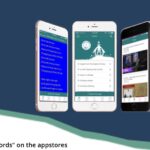
I thought this was topical – We Are Worship in the UK (part of Integrity Music) have made available this free Christmas Carol App. If you need Christmas carol lyrics on a smartphone, this App might prove useful. Complementary resources (sheet music, lyric videos etc) are available from the We Are Worship website.

Available for both Apple and Android, the app lists the words to lots of favourite carols, and some modern options as well.

Given most fire departments frown on candles lighting anything, this can give a modern twist to your next carols service, and assist keeping the environmental impact of such events low, with no need to print song sheets. I suspect if you use this in public, it would be worth having the musos thoroughly check the words match the tune they intend using …

The app allows each user to customise the size of text and colour scheme used for the words so it can best suit their particular vision needs or fashion sense.

The app is available via , or search your app store for “carol words”.

Enabling Inclusion

Bringing Church to the people (or People to the church)

I believe it is fair to say that the original motivation for a lot of church sound systems was the capability to record services to cassette, which could then be distributed to the housebound, the ill and others who might be interested.  As a social mechanism for inclusion of community members who may otherwise be marginalised, it is a practice of considerable merit (although I suspect that you had to physically deliver a cassette tape in person might be a contributing contributor to this).  Cassette tapes have died the death of technological obsolescence, but there are still churches who effectively continue these principles with equivalent modern technologies.

So, it was of interest to me to come across a Facebook post from a person asking to for advice on how to use technology to flip this idea on its head.  Rather than asking how can we share what we do in worship with those who can’t be present; but instead, how can we assist those who can’t be present to contribute to and participate in what we do in worship.  So, this being a technology column, let’s look at some ways to do this.

Technologically, we can categorise suitable methods as audio-only vs audio-video, or as pre-recorded vs “live”.  There are many options available, but the solutions I indicate below are based on real situations and products I know work – this is not to suggest there are no other ways this can be done.  I’ve assumed that your playback location has a sound system built-in, and a projector or video display for video, but there is no requirement for this – there are portable solutions available at low or moderate cost if required, provided care is taken to consider the requirements inherent in the size of the venue.

Pre-recorded audio-only and audio-video

This is potentially the simplest way to start including others.  There are many devices now to record digital audio – a smartphone usually being the easiest to get hold of.  Place the device on a solid surface or tripod if you can in front of the person speaking – resist the urge to hold it in your hand – and use a recording app.  The built-in one will usually be fine, but there are lots of options, both paid and free.  For video recordings, make sure the subject is well lit, particularly the face.  Place the camera lens at the same level as the subject’s face and remember that for speech, close-ups are more effective than long shots (especially when relying on built-in microphones).  Sometimes, the easiest way to capture audio for audio-only play back is to make a video recording.

Having made your recording, the recording file needs to be transferred to the playback device, usually a computer.  If you must remove that unfortunate moment when the fire engine went past, use editing software to trim to suit.  Audacity is a good free program for this for audio, and I tend to use VLC for video.  I also use Camtasia but it comes at a cost.  Also, NCH have a range of good audio and video programs on a free-to-try basis, with very reasonable pricing if you decide you like it.  Depending on your final playback platform you may need to convert the file from the recorded format to a format compatible for your playback system – most editing programs allow at least some degree of format conversion, but there are also dedicated conversion programs available.  Often, embedding the audio or video in a power-point slide is the easiest way

Live audio-only and audio-video

The principles of capturing a recording is fundamentally the same as for Pre-recorded – you just won’t have the opportunity to do any editing or format conversion – get it right first time!  You will need to have some form of reasonable network connection to your venue though.  Packages include Skype or Zoom.  Livestream.com (as used for recent conferences) is also a moderately priced option.  Essentially, you use the solution to “make a phone call” from the reader to the venue.  This can be answered directly, but a slightly more elegant solution would be to provide a video-switcher at the venue so that the call can be placed and/or answered and everything made ready before the call is displayed to the audience.

I’d love to hear about what you are doing.

Resources

Installation tips for AV Display installation

Installing the Right AV Display

My last column looked at some of the principles of choosing the right AV Display – making sure that the capabilities and features of the display complement the reasons you want to have a display in the first place.  The surest way to waste AV money is to acquire devices that don’t actually meet the needs of the situation.  Another sure way is to not install systems properly.  Improper installation can lead to systems being “too hard” to use, create safety hazards and/or poor quality displays.

Front vs Rear projection

Front projection is where the projector is located, well, in front of the screen (the same side as the audience), the way 90% of projectors are used.  An equally valid way to use projector’s is Rear projection, where the projector is mounted behind the screen (the opposite side to the audience).  The screen is made from a special translucent material so the image projected can be seen from the audience side.  The projector mirrors the image so it still appears the right way around to the audience.

There are several advantages to rear-projection.  One is that it may suit the constraints of the location better and makes for an easier installation.  Rear projection is a good technique to consider in an environment where there are high ambient light levels.  Because the projector tends to be closer to the screen than with front projection schemes, watt for watt a rear projected image will be brighter.  Even better perceived brightness can be achieved by constructing a light-proof box around the space between the projector and the screen. 

Good security of the projection device can be achieved as the projector doesn’t have to be in the same room as the audience, so long as there is a window to let the projected image through.

Permanently Installed vs Not Installed

Of course, the ultimate security is to lock your projector away when not in use, and only set it up when it is in use.  The AV industry refers to this as an un-installed system.  This works particularly well for table-top projectors for small groups and meetings and of course provides scope for flexible use in multiple locations.  The disadvantage is that you need someone around that knows how to set the system up safely, and the time that can be taken in unpacking / packing.  Thinking about what the process needs to be in advance can allow measures to be implemented that will allow a system to be used safely and with minimum effort.  For example, installing a new electrical outlet at the location the projector will be used will allow quicker setup without having an extension lead draped across the space, thereby being both quicker and safer.

Structural Integrity

On the subject of safety, installed systems need to be fixed securely.  It may seem like an obvious statement, but attaching a display device to wallboard or other lining is insufficient in most circumstances.  Devices should be adequately fixed to the building’s structure, or equivalent.  Don’t judge the adequacy of a mounting by whether or not it falls down in the first 10-minutes.  From a Health & Safety perspective, it doesn’t matter if it falls down after 3-minutes or after 3-years – it still may be improperly fixed.  Suspended systems and devices need particular attention because of the level of hazard they can create.  In many cases, it worth seeking the opinion of a structural engineer on fitting or retro-fitting suspended systems

very old projector with text "How to Choose the Right AV Display"

How to Choose the Right AV Display

When I am talking to someone who has recently found out I am involved with AV professionally, I often get asked “What projector do you recommend”?

This is almost as hard to answer as the proverbial “How long is a piece of string”?  There are many factors to take into consideration, and most of those factors have nothing to do with the technical performance of the projector or other display device.  Further, there is a general assumption that only projectors can be considered as display devices, which is sometimes true, but not always.  Let’s look at some of those factors.

Mission

What are you trying to achieve by making this change?  Are you looking to display the words of hymns or worship songs for the congregation (so you can save the cost of paper copies)?  Replace Orders of Service?  Illuminate sermons? Or are you looking “to be more culturally relevant” to youth or society?  Do you want to provide a regular movie experience as a community outreach, or provide background content at a social enterprise café?  Or are you simply wanting a way to display the church council agenda during the meeting?

These types of questions are important because what you are trying to do will in a large measure determine what type of content you will want to display.  Hymns and Orders of Service is typically essentially text; content to amplify a sermon might be a mix of images, infographics and text.  Currently, “culturally relevant” is code for video material.  (By the way, to present video successfully you will need good audio system capability as well as the display system.)  A café might use a mixture of TV programming (video) and infographics material.

Different types of material have different requirements that need to be delivered by the solution.  Text needs to be clear, crisp and (above all) readable, so good resolution and good brightness levels are important.  Video needs a solution with very good contrast, and with the technical “grunt” to keep up with rendering 50 to 60 frames each and every second without missing a beat.  This is harder to measure objectively, but good video devices tend to have lots of internal processor power and internal memory.  Presentations can be text based or image based and so tend to need a combination of text and video requirements.

Readability

A critical factor for displaying text is how far the image is from the audience.  Obviously, the worst-case scenario are the people in the back corners – the size of the screen (especially the vertical size) makes a difference with this.  But a large screen may not be any good for viewers close to a display – if it is too big the display fills the field of vision and it becomes very difficult to read when you must physically turn your head to see each end of a line.  The rule of thumb used professionally is that the closest viewers should be more than 1½-times the height of the displayed image from the display, and the furthest viewer no more than 6-times the height of the displayed image.

The predominance of wide-screen formats for video material means that video is less dependent on vertical screen size, but instead depends more on horizontal screen size, within limits imposed by the aspect ratio of the format used.

Logistics & Installation

How do you need to operate your presentations?  Do you need to setup and pack away all your equipment every time you use it?  Are you going to use the equipment in the same place every time?  How technically savvy are your technology operators?

Solutions can be portable, semi-portable, semi-permanently installed or permanently installed.  Devices have been developed optimised for each of these scenarios.  One can select solutions that need to be installed at the edge of a space, or in the middle of a space. 

A potential solution needs to be considered in the context of both what you are trying to achieve and the constraints and advantages of the space (or spaces) in which you are going to use it.

So, before you go shopping for a display device, do yourself a favour and make sure you understand why you want it, and what that means the device you end up with needs to do.

Office 365 for non-profits

Those of you that have anything to do with the Methodist Church of NZ may have seen in the March eMessenger an article encouraging parishes to use Microsoft Office 365 for free instead paying for Microsoft Office. “Free” is always an attractive price-point for churches and other charities, so let’s look at this offer a bit more closely.

This is not a Methodist specific offer. Microsoft has a global philanthropic program where they donate licences to their own products to qualified charities around the world, administered by a global charity called TechSoup Global. The criteria for eligibility is “Non-profit and non-governmental organizations that are recognized as charitable organizations in their respective countries. Eligible organizations must also operate on a not-for-profit basis and have a mission to benefit the local community […]”. Microsoft has an Eligibility webpage with detailed explanation of eligibility criteria and links to country specific eligibility criteria.

Because the licencing is essentially a donation from Microsoft, there are some conditions attached. Firstly, the donated software must be used to further the charitable purpose of the done organisation and cannot be primarily for personal use. Reasonable ancillary use is accepted, but organisations should endeavour to ensure that the software doesn’t become a volunteer’s primary [personal] e-mail address, for example. Microsoft has a specific guideline on whether volunteer’s are eligible for Nonprofit licences; the volunteer is accountable for specific activities and results, the volunteer’s role is year-round on-going (or seasonal recurring annually) and the volunteer will not use the software for activities related to personal gain. Use by employee’s should be governed by a “reasonable use” policy. Secondly, I understand that as a donated item, charities should be recording the full commercial value of the software as a “donation in-kind”. (If there is someone reading this who can clarify this, I’d appreciate hearing from you.)

So what can one get for free? In the context of Office 365 services, the answer is 2 specific plans, “Nonprofit Business Essentials” and “Nonprofit E1”. The equivalent commercial versions of these plans are currently worth $9.00 per user per month and $11.90 per user per month (plus GST), so the magnitude of the donation is quite significant. The 2 plans are functionally quite similar – the “Business” plans have limitations in the number of users, migration options and some back-of-house functions that make it more suitable for smaller organisations.

The key components included in each license are as follows;

  • Email service with 50GB mailbox, calendar and contacts
  • OneDrive file-sharing with 1TB storage (which means capability to access anywhere from any device)
  • Unlimited online meetings with HD video, web-conferencing and messaging
  • Organisation Intranet (Sharepoint)
  • Team workspace and collaboration tools (Teams)

So, if you are at all familiar with traditional Office, you will be wondering where Word, Excel, PowerPoint and Publisher have gone. Well, they are there – sort of. The free plans only include the Online version of these applications. There is nothing wrong with this – while you wouldn’t want to write your thesis paper with the online versions, they are quite capable, though a little different in some usability respects. But, at the risk of some over-simplification, you may need to be online while you edit. To my mind, ideally you would want your main computer to have Desktop Office program versions installed and just use the online versions for a quick review or last minute tweaks when you are away from your computer.

In the final analysis, the Desktop Office programs are also available through Microsoft’s non-profit program, heavily discounted compared to commercial pricing, but not free. They are available either as a DVD that you can install, or as a different Office365 plan (probably the Nonprofit E3 plan for most) where a monthly per user fee gives access to the desktop versions as well as the online. This decision can be made on a user by user basis – licence plans can generally be mixed and matched to match individual requirements. For example, you can have one user on E1 with no desktop office, another on E1 with desktop office from another source and another on E3 with desktop office available from the cloud. Almost all software products are transitioning to cloud based licenses, so I suspect it is only a matter of time before this becomes the only option available.

As always, happy to address any questions you may have. Contact me at dct@dct.org.nz or via the editor. This article is published at www.dct.org.nz (and all the links are clickable there?).

Links

[Links correct at time of publication; please note they may no longer be active.]

Author - Peter Lane

Peter Lane is Principal Consultant at System Design & Communication Services and has over 30-years’ experience with Technology systems.  We invite your questions, suggestions and ideas for articles.  These can be submitted either through the editor or by email to dct@dct.org.nz.  We also operate a website focused on building a community of people who are interested in improving the way we can use technology located at www.dct.org.nz.

Praising the Lord with microphones and Facebook

“Let’s sing a new song to the Lord!” And if it’s at all a modern new song, that means you might suddenly have a requirement for a bass, 2 guitars, keyboard, drums and 6-vocalists. Oh, my goodness – how do we make all that work. Suddenly, the neat new idea is in the “too hard” basket, and nothing ever happens. And it’s not just music;

Baby speaking into a microphone.
Are we just babies where technology is concerned?
  • “I have seen this really powerful video-clip that would be perfect to play as part of my sermon …”
  • “We have a funeral in a couple of days and the son is stuck in Northern India; he will be devastated …”
  • “Next week I have to attend a meeting in Blenheim – no one has the funding to fly me, but if I drive I won’t get back in time to lead worship …”

I have a job that gives me the opportunity to travel a lot, and as I travel I have been in conversations with people in the Church who are concerned that the way we tend to do things is not in touch with the ways of the world in which we live. We need to find ways to “translate” our message to make ourselves more relevant, particularly to our youth. “Better use of ‘Technology’,” they say, “is one way to do this. But we don’t know how.” Technology is not the be-all-and-end-all to being relevant, but it is useful.

I almost always counsel my secular clients against using Technology for Technology’s sake. I think that it is even more important that Churches adopt this principle. The mission of the Church is to communicate the gospel message, and if this message gets lost in the razzle-dazzle of technology and being relevant, then we have failed in that mission.

This is the first of what is hoped to be a regular column, focusing on practical suggestions, tips and strategies for using audio-visual and ICT technology in the life of the church. We envisage covering a broad range of communication systems, including audio systems, projection, email, productivity & collaboration systems, hearing aid loops, videoconference, streaming and social media. We intend to address many relevant usage scenarios such as worship, church meetings, office work, designing new systems and personal reflection. Some articles may be a simple “how-to” carry out some feature in a software package. Others may offer a strategic or theological reflection. While it currently seems most articles will be written by me, it is also hoped we may have occasional guest contributors.

Our hope is to be an interactive forum so we answer real questions – we invite your questions, suggestions and ideas for articles. These can be submitted either through the editor (if you are reading this on one of the paper incarnations), or by email to dct@sdcs.co.nz. We also plan to operate a website in conjunction with this column – a website focused around building a community of people who are interested in improving the way we can use technology, who can interact by a forum, asking questions or providing answers as they are gifted. The website will host supplementary material to the Touchstone articles – more detailed articles, videos and links to web resources that may not be able to fit in the Touchstone’s space requirement. Everything going well, by the time you read this article www.dct.org.nz will have a working website at the end of the link. (If not, please pray for me and patiently keep retrying till it appears.)

The examples above have been deliberately chosen to be difficult challenges in a mainline church – there are things we can do simply and easily that will make a real difference. They are also chosen to reflect things that have been done, but usually not very well. I look forward to our on-going conversation as we explore how to use our resources to enhance our Message.

Peter Lane is Principal Consultant at System Design & Communication Services and has over 30-years’ experience with Technology systems.  We invite your questions, suggestions and ideas for articles.  These can be submitted either through the editor or by email to dct@dct.org.nz.  We also operate a website focused on building a community of people who are interested in improving the way we can use technology located at www.dct.org.nz