3 tips for better Livestreams: Good cameras for Live Streaming

Welcome to the final instalment of our series, offering valuable tips for live-streaming your church services.  We hope you’ve already witnessed significant improvements in your live streams by implementing our previous tips on enhancing audio and lighting.  If you were really keen, you might have even explored our bonus tip on network connections available only on the d|c|t website.  Today, we’ll delve into another crucial aspect of streaming: the camera.

All digital video cameras essentially operate the same way: they capture light through a lens, focus it on a digital sensor composed of individual pixel sensors, and convert the electronic output into a video signal, typically at 50 or 60 frames per second.  However, not all cameras are created equal for streaming purposes.

While it’s true that you can use a phone, a laptop camera, or a webcam for streaming, it’s important to consider how they are used, which is optimized for close-up shots of individuals at a distance of about ½ to 1 meter from the camera.  This differs significantly from the requirements of a worship setting, where you need to capture a mix of wide, contextual shots of the church sanctuary and medium to close shots of key locations, such as the lectern, the altar, or the organist.  While your phone or laptop may suffice for a basic setup to get started and may still have a role for specific special-purpose shots, to elevate your live-streaming experience, it’s worth investing in a high-quality camera optimized for live streaming.

Let’s explore some examples. Cameras with 4K or near-4K resolution, capable of recording to memory cards and streaming, and produced by industry-standard manufacturers, offer impressive features. The cameras pictured above are budget-friendly versions of cameras designed for broadcast and professional video production.  However, they might not be the ideal choice for traditional churches looking to live-stream worship services.

To use these cameras effectively, you’d need to place them on tripods.  Placing a camera on a tripod in the middle of an aisle with cables running to a computer isn’t the most elegant solution and can pose safety concerns, especially when dealing with multiple cameras.  Cabling can also be complex, requiring specialized cables and adaptors.  Additionally, each camera demands a dedicated operator, potentially obstructing the views of the congregation.  Finding skilled volunteers can be a challenge, and the setup and teardown process for each use can lead to operational errors.

While these cameras can be valuable for scenarios that require high-quality video, flexibility in positioning, and creative angles, they might not be the best choice for your primary camera.

Instead, consider PTZ (Pan, Tilt, and Zoom) cameras as a simpler and more practical solution for worship streaming.  These cameras, originating from video-conferencing systems, are optimized for streaming needs.  They are compact and can be discreetly mounted on walls or ceilings.  With remote control capabilities, you can eliminate the need for camera operators at the camera location.  Some newer models even offer features like automatic tracking.  These cameras often come with native network connections for easy integration into your streaming setup.

PTZ cameras such as the ones pictured here, provide most of the same features as the cameras mentioned earlier but are optimised for permanent installation and typically don’t require a dedicated operator.  While the initial cost may be a bit higher, ranging from $3,000 to $5,000, the improvement in streaming quality justifies the investment.

In a church context, the following criteria are important:

  • Traditional churches benefit from high-resolution cameras as they allow you to create multiple views from a single camera feed, ensuring a better user experience.
  • PTZ cameras can use presets and transitions to create smooth scene changes without compromising resolution.
  • Look for cameras with optical zoom, as it delivers better image quality compared to digital zoom.

We trust that this series has been informative. If you have any questions on this topic or are interested in online training for live-streaming church services, please don’t hesitate to reach out to us.

Camera images sourced from the respective manufacturer’s websites. For more product information follow the links below.
Panasonic HC-X1500 | Canon XA60 | Sony FDR-AX43 | PTZ Optics IP20X | Angekis Saber IP20X | Telycam Drive+ N

Peter Lane is Principal Consultant at System Design & Communication Services and has over 30 years of experience with Technology systems.  We invite your questions, suggestions and ideas for articles.  These can be submitted either through the editor or by email to dct@dct.org.nz.  We also operate a website focused on building a community of people interested in improving how we can use technology in churches, located at www.dct.org.nz.   

Auckland skyline and reflection at night with the words "Welcome to Worship Example; Livestreamed Worship at 10:00am" superimposed

Another tip for better Livestreams: Tips for a Seamless Network Connection

Hey there!  If you’re part of a house-of-worship community and you’ve ventured into the world of live streaming, you’re in the right place.  In this article, we’ll explore some simple yet effective tips to improve your live streaming performance, even if you’re not a tech wizard. I hope we can use this info to help you make your virtual gatherings smoother than ever.  If you’ve been following along, you will know that I’ve been doing a series of articles for Touchstone titled “3 Tips for Better Livestreams” – one on Audio, one on Lighting and one on cameras.  This article is a bonus 4th tip for the blog community only.

So now you have optimised your live streaming output with my other tips, we need to transmit the result to your audience in the world outside of your venue.  This is where your network equipment and processing equipment have the most impact on what your audience actually sees and hears.

  1. Know Your Internet Speed: Before we dive into any technical jargon, let’s start with something everyone can relate to; your internet speed.  A reliable live stream begins with a stable internet connection. Check with your Internet Service Provider (ISP) to ensure you have an adequate upload speed.  ISPs will often quote a dual number for speed, like 300/100.  This translates to a download speed of 300Mbps and an upload speed of 100Mbps.  The numbers are nominal, not exact.  For a seamless streaming experience, aim for at least 5-10 Mbps just for streaming, but as in most things Internet, more is better.  It may be worth running the Speed Test tool at https://www.speedtest.net/ to make sure.
  2. Wired Connection Over Wi-Fi: If you’re streaming from your house of worship, try to use a wired Ethernet connection instead of Wi-Fi.  Wired connections are more stable, provide dedicated capacity and are less prone to interference.  If you must use Wi-Fi for any part of your solution, make sure you’re close to your router for a stronger signal.  Where possible, locate the router and other devices so there are no walls or other obstructions between them, as these degrade the signal.
  3. Quality Matters, But Adjust Settings: Full 1080p high-definition streams might be tempting, but they can strain your internet connection.  You can still have great quality with lower settings, like 720p, especially if your audience is using a phone or tablet as their viewing device.  Most streaming platforms offer options to adjust video quality.  Try reducing the video resolution to a lower setting if you experience buffering issues or other quality issues on the audience devices but not at the venue.
  4. Close Unnecessary Applications: Your computer or streaming device may be running background apps that consume bandwidth.  Close unnecessary programs to free up resources for your live stream.  This can make a big difference in performance.  Unleash your inner detective to find and close everything running on your device that isn’t necessary for your livestream.  This might mean moving ancillary applications like presentation software, onto another computer.  This is especially the case where the ancillary application is necessary for the overall service, but not directly contributing to the actual livestream.
  5. Update Your Streaming Software: If you’re using streaming software, keep it updated.  Developers often release updates to improve performance and fix bugs.  Regularly check for updates and install them to ensure a smooth stream.
  6. Consider Hardware Upgrades: If you’re doing live streaming regularly, investing in some hardware upgrades might be beneficial.  Upgrading your computer’s RAM is an option that is particularly helpful or using a dedicated streaming device can help handle the workload more efficiently.
  7. Test Your Setup Before Going Live: Don’t wait until the big day to test your setup.  Do a trial run to make sure everything works as expected.  Check your audio, video, and internet connection.  It’s much easier to troubleshoot issues in advance.
  8. Engage Your Audience: Finally, remember that technology is just a tool.  What truly matters is the relational connection you build with your audience.  Engage with your viewers through comments and chat and make them feel part of the experience.

In the world of live streaming, even those without a technical background can create a smooth and enjoyable experience for their house-of-worship community.  By following these user-friendly tips, you’ll be well on your way to delivering high-quality live streams that bring people closer together, regardless of their age or technical expertise. Soon, the image at the top of this post may well live on you church’s website!  Happy streaming!

Peter Lane is Principal Consultant at System Design & Communication Services and has over 30 years of experience with Technology systems.  We invite your questions, suggestions and ideas for articles.  These can be submitted either through the editor or by email to dct@dct.org.nz.  We also operate a website focused on building a community of people interested in improving how we can use technology in churches, located at www.dct.org.nz.   

lighting rig with several brightly coloured lights

3 Tips for Better Worship Livestreams – Lighting

image: wallpaperflare.com

My last Touchstone article was the first of a series on a few easy and (relatively) cheap ways to make your livestream experience memorable (for the right reasons!).  Perhaps paradoxically, the best way to improve the technology side of a livestream – sorry, technology can’t improve the content – is to improve the audio quality

So, your paradox detector may oscillate even more wildly when I tell you that the second most important contributor to video quality is … lighting!  That’s right, still nothing to do with actual livestream systems!  Let me quote from and article by Paul Alan Clifford, self-styled Pastor to Techies and ChurchTech consultant, from an article he wrote for churchproduction.com’s blog.

God is much better at creating things that see than we are.  Our eyes, for example, are a technical marvel.  The dynamic range they see far exceeds what most cameras can.  This one fact is why so many churches have such bad lighting.

What’s the problem?

It is often difficult to explain why it is that lighting is needed even in environments where we can see perfectly well.  Our eyes “see” far better than any video camera ever made.  They have superior low-light performance, superior colour palette, superior focusing ability and superior resolution.  Our eyes work so well, that it seems inconsequential to architects and lighting designers to include features in our buildings that are problematical (at best) in terms of delivering light to the things we want to look at.  Large windows directly behind the pulpit and top-down vertically directed lighting are 2 of the most common issues in this regard, but most of the time, our eyes automatically compensate for this, and we don’t notice – we even think the scene looks good!

Cameras, on the other hand, will “look” at that same scene and potentially struggle to produce a usable image.  Let’s look at how a camera works.  (I’m going to walk through a typical electronic digital camera, but in terms of lighting issues, a film camera has the same types of issues, though there are more options to mitigate these in the processing stage).

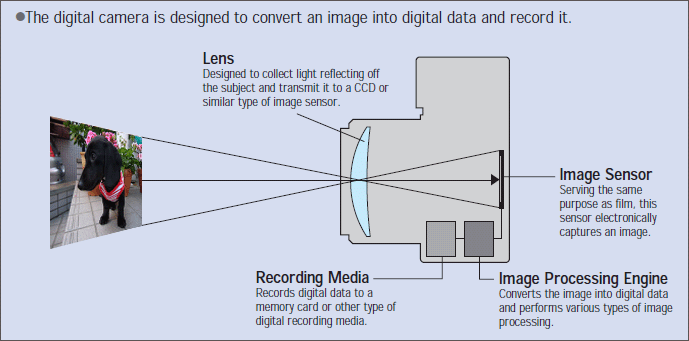
So, at its simplest, a camera is a device that controls the admission of light into a hole in a box, to illuminate a sensor/recording device.  In proactice, we enhance this by adding lenses and other modifying devices to give us more control over the image we end up producing.  With a digital camera, the light entering through the lens strikes an image sensor.  The signal output by the image sensor is processed within the camera to create image data, which is stored in a memory.  For motion, multiple images are compiles into a video stream and transmitted or stored. 

Schematic drawing showing how a digital camera works

image: panasonic.com

In the camera, the image sensor is the equivalent of the human eye.  It has the role of converting the light directed on it through the lens to the electrical signals that are processed by the image processing engine.  Sensors inherently have dynamic range limitations – too much light will wash out the picture; too little light results in little or no image being recorded.  Light can be regulated to some degree by the lens aperture, (the size of the opening in the camera’s lens), which can be adjusted to allow more or less light in.  However, Cameras always require more light to produce a given image compared to the naked eye.  Even at its most open setting, a lens will not allow enough light in to produce an adequate image for livestreaming.

Camera Manufacturers have traditionally responded to this issue by using the Image Processing Engine in the camera to attempt to compensate for the sensor shortcomings as best it can.  In reality, it is the quality of the Image Processing Engine that makes the difference between low-quality and high-quality cameras.  The Image Processing Engine is a dedicated, special purpose computer that processes each image in the stream pixel by pixel.  The workload for this computer increases as resolution, colour depth or frame rate increase – there are simply more pixels to process in a fixed timeframe.  So if the scene the camera is capturing doesn’t have enough light reflecting back to the camera, the Image Processing Engine has to work even harder and may just run out of processing capacity all together, resulting in flat, sub-optimal images.  Note that it is the reflected light we need – there may be plenty of light in the environment as far as the eye is concerned.  The camera and the light source need to be on the same side of the scene for this to work.  A window behind the scene will easily overpower the light reflected from the scene, and overhead lights will light the top of the scene and cast shadows down the scene which will turn up as dark patches in the video.

Solutions

The obvious (and technically preferred) solution is to put more light on the scene, and I will give some thoughts on that in a moment.  However, I promised you easy and (relatively) cheap solutions.  So here are some ideas that may help without actually biting the funding bullet and putting in a theatrical lighting system.

  • Reduce the quality of the video output of your cameras (less resolution, colour depth, frame rate) to reduce the processing load on the Image Processing Engine.
  • If you are able to relocate any of your existing lights, see if you can move them closer to the scene, and reduce the angle to the camera.
  • Control natural lighting with blinds or curtains or similar – usually even indirect sunlight will overpower any other lighting you have.  Also, if the sun goes behind a cloud in the middle of your livestream, you may suddenly find that what was working well now doesn’t work at all.

Theatrical Lighting

Don’t get carried away – just because I said Theatrical Lighting doesn’t necessarily mean a full-on coloured light extravaganza (even though that’s so cool!!)  Theatrical lighting can be optimised to deliver lots of white light, targeted to where you need it to get great video.  Unfortunately, putting in lighting from scratch often means leaving the realm of relatively cheap solution.  Having said that, the advent of LED lighting systems has reduced the price of lighting dramatically and you should investigate fully before assuming you can’t afford it.  Some things to remember, though;

  • Check your building’s electrical capacity – again, LED lighting has reduced the requirement for power significantly, but still check.
  • Structural capacity – if you are considering mounting lights from walls or ceilings, be safe and get it checked beforehand.  Don’t forget that the Building Code will require secondary seismic restraint, so things don’t fall on you in an earthquake.
  • In a perfect world, the objective is to create a perfectly even wash of light over the full scene.  This tends to require lots of light fittings, which is why 3-point lighting was developed.  This identifies the areas of most interest in the scene and illuminates them with Key light (main light), Fill light (fills in the shadows from the key light) and Top light (sometimes called back light – this highlights the top and side of the subject so it visually “pops” out of the background).  There are lots and lots of good videos and articles on the web on how to do 3-point lighting.

Have fun experimenting – I hope there is something here that helps to improve your livestreams and videos.

Peter Lane is Principal Consultant at System Design & Communication Services and has over 30 years of experience with Technology systems.  We invite your questions, suggestions and ideas for articles.  These can be submitted either through the editor or by email to dct@dct.org.nz.  We also operate a website focused on building a community of people interested in improving how we can use technology in churches, located at www.dct.org.nz.   

3 Tips for Better Worship Livestreams – Audio

image: Freepik.com

Ok – having just narrowly prevented myself from starting yet another article with a variation on the theme of “Covid has Changed the Way We Use Technology Forever!”, I am now struggling to think of an alternative introduction to this article.

So, let me start by suggesting that the concept of bringing church services to the people is a concept that has been around long before Covid.  Indeed, it is an area of church worship that has been a relatively quick adopter of technology over many years.  Whether it is printed sermons, audio cassettes, DVDs or online platforms, the church has always had an interest in bringing the worship experience to individuals who are for one reason or another unable (or unwilling) to attend worship with their local community.  However, while there are good reasons for extending community worship beyond the four walls of a specific building at a specific time, isolation of individuals from the community of faith has been considered a bad thing, and by extension, providing tools that make it easy to isolate themselves from the community by providing a rationale that “I’ll catch-up the livestream so I’m not really missing out!”  This issue is perhaps food for another article for another time – arguably a Faith & Order matter rather than a technical matter but I have a foot in both those camps, so I don’t expect to escape.

However, for whatever reason, many churches are now trying to work out what they will do with the livestreaming setup they hastily put together in response to Covid lockdowns.  Over the next few issues, I will explore a few easy and (relatively) cheap ways to make your livestream experience memorable (for the right reasons!), starting with Audio quality.

Audio

Perhaps paradoxically, the best way to improve the technology side of a livestream – sorry, technology can’t improve the content – is to improve the audio quality.  The human brain can put up with an amazing amount of video defects so long as it has a clean, crisp and intelligible audio feed to help it fill in the deficiencies in the video.

A common strategy for first-time livestreamers is to rely on an in-built microphone in their camera device, whether a phone, webcam or even a more sophisticated camera.  The resulting sound from this type of audio setup is muddy because the microphone happily picks up every sound in the space, whether it is useful or not.  A single microphone in a space will make no distinction between sound reflected from walls, the kids playing at the back and the fire engine going past outside – it will capture everything it can hear.  If you are lucky, it will capture the preacher’s voice too.  If you are doubly lucky, the preacher will be louder than everything else put together, but there will always be some distortion as first the streaming equipment, and then the human ear, attempts to make sense of this very complex audio signal.

Ideally, we want microphones that are placed as close to the speaker (human speaker, not technology speaker) as possible, and optimised to reject as much background noise as possible.  Which, un-coincidentally, is exactly what you should be trying to achieve with a church sound system.  If your church already has a sound system, the easiest way to improve your livestream sound is to use the sound system’s sound.  Stream the video from the camera(s) and the audio from the sound system together and you should see (sorry, hear) immediate improvements.

There are a couple of caveats to this approach;

  • If your church relies on congregational singing, or has lots of responses in its worship liturgy, or other non-electronic audio that is an integral part of the livestream, then you will probably need to add some microphones to capture that audio.  However, you probably don’t want that sound to come out of the local audio speakers – to do so would be to invite instant feedback (and the ire of the now deafened congregation).  This means that your sound system needs to be able to support multiple outputs or buses and has the ability to switch specific inputs to only specific outputs.
  • Similarly, if you have someone in your livestream audience who is going to speak (for example, if you are using Zoom Meetings), the sound that originates from Zoom should never be sent back to Zoom – this time the feedback (and the ire) will be in the Zoom Room.  The solution is the same – your sound system needs to support multiple outputs and the ability to switch inputs to specific outputs.

So, give it a go and see how much better you can make your Livestream sound.

Next time, we will look at Lighting.

Peter Lane is Principal Consultant at System Design & Communication Services and has over 30 years of experience with Technology systems.  We invite your questions, suggestions and ideas for articles.  These can be submitted either through the editor or by email to dct@dct.org.nz.  We also operate a website focused on building a community of people interested in improving how we can use technology in churches, located at www.dct.org.nz

GoPro camera

Streaming Worship services

I have been visiting with Takapuna Methodist church this past month and came away very impressed at the simplicity and elegance of the setup they use for “streaming” their Sunday worship service.  The facility provides a means for the congregations sick or housebound members to still experience the Sunday worship and feel they are part of the community.

Fundamentally, the setup is very simple – an iPhone is mounted on a tripod at the back of the church and runs a Facebook Live session to the church’s Facebook Page by means of the standard Facebook Pages app.  The quality of the end-product, using the phone’s camera and the built-in microphone was surprisingly good (though perhaps the fact I am surprised is only a give-away as to my age!)  The primary drawback was that the audio was a bit muffled and echoey but not to the point of intelligibility.  Of course, the iPhone is not required – with a little thought, you could make this setup work with just about any mobile device or computer.

So how would one go about improving this set-up?  The first option to consider is improving the audio.  One option is to add an external microphone to the iPhone.  Shure, Røde and a number of other manufacturer’s make a number of microphone models designed to plug directly into an iPhone, usually via the lightning connector.  (Similar products are available for non-Apple devices using USB connection, and there are still a few options that connect by the microphone input which will work with most mobile phones, though we suggest this last is a last resort.)  The other option worth considering is to pick up the sound from a sound system (if you have one).  How you would do this exactly would depend on the specific audio equipment you have and what spare capacity it has.  Devices exist (again, Shure, Røde et al) that can capture the sound coming out of an audio mixer and sending it to the iPhone to incorporate with the video.  The downside of this is you tend to only hear people using microphones – audience responses and congregational singing will likely be lost unless you intentionally set up microphones to capture this.

There are some risks / legal matters associated with streaming that need attention.

Privacy – you need to take reasonable efforts to ensure that identifiable images of people are not broadcast without there permission.  Usually, the easiest way to deal with this is to only broadcast a general wide shot where individuals are not readily identifiable.

Copyright – The standard CCLI NZ license allows you to record services (including copyright material covered by CCLI), but the recording should only be made available to congregation members.  In the context of streaming, this would suggest that a password or similar mechanism should be used to restrict access to the stream.  I would suggest that you should never re-stream a commercial video (even if you have the appropriate CCLI licence to play it in your service).  Ideally, everything you stream should come under the category of either original content or authorised content.

References

CCLI Guidelines – https://nz.ccli.com/what-we-provide/faq/#internet

Shure Motiv™ – http://www.shure.com/americas/motiv/overview

Røde – http://www.rode.com/microphones/mobile

Note

The camera shown in the illustration for this article does not actually support streaming. Equivalent camera models that became available after the publication date do.

Enabling Inclusion

Bringing Church to the people (or People to the church)

I believe it is fair to say that the original motivation for a lot of church sound systems was the capability to record services to cassette, which could then be distributed to the housebound, the ill and others who might be interested.  As a social mechanism for inclusion of community members who may otherwise be marginalised, it is a practice of considerable merit (although I suspect that you had to physically deliver a cassette tape in person might be a contributing contributor to this).  Cassette tapes have died the death of technological obsolescence, but there are still churches who effectively continue these principles with equivalent modern technologies.

So, it was of interest to me to come across a Facebook post from a person asking to for advice on how to use technology to flip this idea on its head.  Rather than asking how can we share what we do in worship with those who can’t be present; but instead, how can we assist those who can’t be present to contribute to and participate in what we do in worship.  So, this being a technology column, let’s look at some ways to do this.

Technologically, we can categorise suitable methods as audio-only vs audio-video, or as pre-recorded vs “live”.  There are many options available, but the solutions I indicate below are based on real situations and products I know work – this is not to suggest there are no other ways this can be done.  I’ve assumed that your playback location has a sound system built-in, and a projector or video display for video, but there is no requirement for this – there are portable solutions available at low or moderate cost if required, provided care is taken to consider the requirements inherent in the size of the venue.

Pre-recorded audio-only and audio-video

This is potentially the simplest way to start including others.  There are many devices now to record digital audio – a smartphone usually being the easiest to get hold of.  Place the device on a solid surface or tripod if you can in front of the person speaking – resist the urge to hold it in your hand – and use a recording app.  The built-in one will usually be fine, but there are lots of options, both paid and free.  For video recordings, make sure the subject is well lit, particularly the face.  Place the camera lens at the same level as the subject’s face and remember that for speech, close-ups are more effective than long shots (especially when relying on built-in microphones).  Sometimes, the easiest way to capture audio for audio-only play back is to make a video recording.

Having made your recording, the recording file needs to be transferred to the playback device, usually a computer.  If you must remove that unfortunate moment when the fire engine went past, use editing software to trim to suit.  Audacity is a good free program for this for audio, and I tend to use VLC for video.  I also use Camtasia but it comes at a cost.  Also, NCH have a range of good audio and video programs on a free-to-try basis, with very reasonable pricing if you decide you like it.  Depending on your final playback platform you may need to convert the file from the recorded format to a format compatible for your playback system – most editing programs allow at least some degree of format conversion, but there are also dedicated conversion programs available.  Often, embedding the audio or video in a power-point slide is the easiest way

Live audio-only and audio-video

The principles of capturing a recording is fundamentally the same as for Pre-recorded – you just won’t have the opportunity to do any editing or format conversion – get it right first time!  You will need to have some form of reasonable network connection to your venue though.  Packages include Skype or Zoom.  Livestream.com (as used for recent conferences) is also a moderately priced option.  Essentially, you use the solution to “make a phone call” from the reader to the venue.  This can be answered directly, but a slightly more elegant solution would be to provide a video-switcher at the venue so that the call can be placed and/or answered and everything made ready before the call is displayed to the audience.

I’d love to hear about what you are doing.

Resources